Visual flow canvas
Represent the integration as a flow of triggers, decisions, connector calls, data handling, and final responses.
Workflow designer
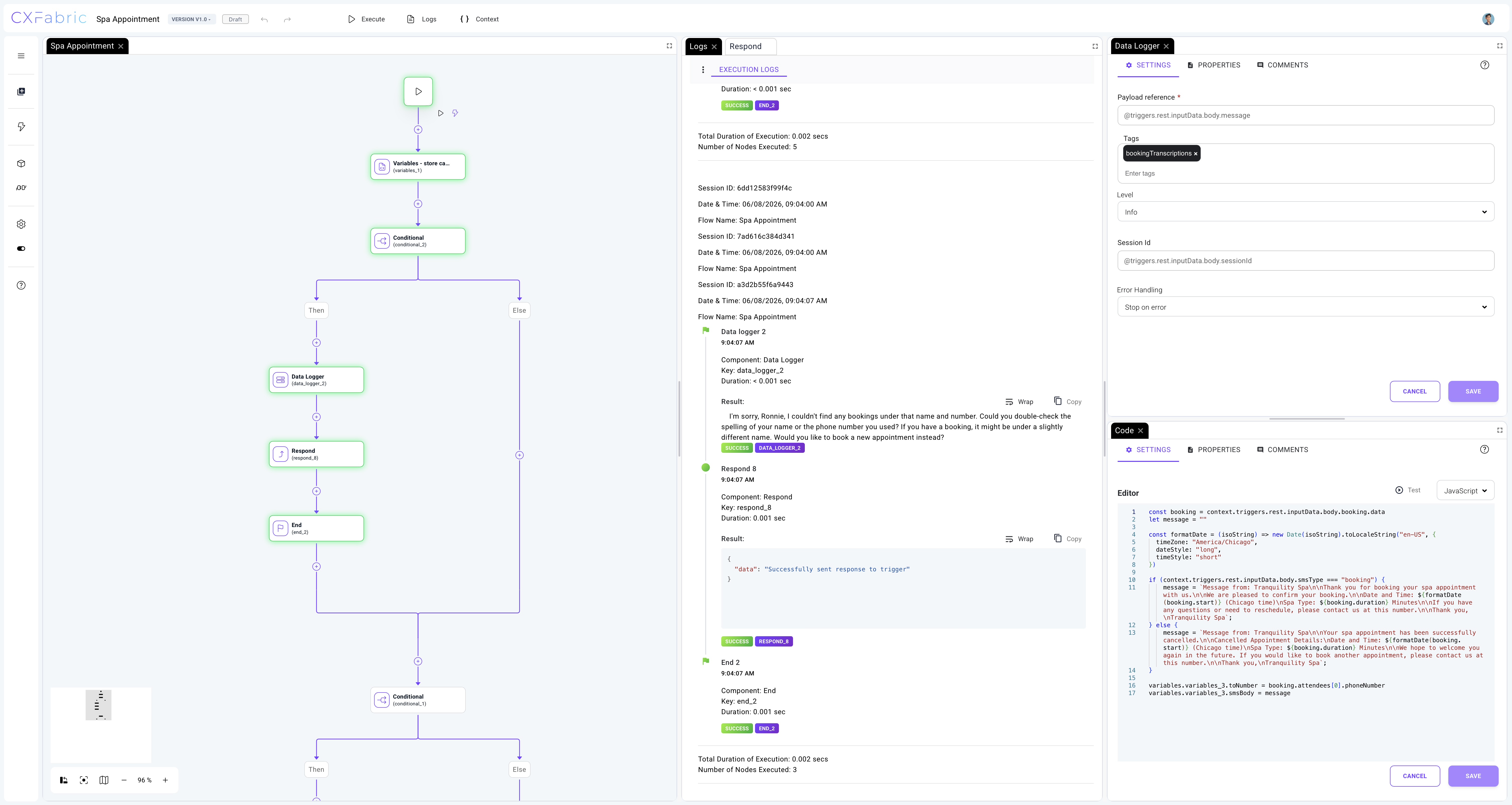
The CXFabric designer gives teams a visual workspace for building customer-owned automation. Teams can drag components onto a canvas, connect the steps, configure each action, and keep the workflow logic visible from first draft through deployment.
Builders can work visually, add connector actions, use built-in components, bring in custom code where needed, execute the workflow, review logs, inspect context, and version the implementation before it moves into a customer environment.
Visual orchestration
CXFabric workflows are built as connected steps, so the business path, API calls, connector actions, branching, and responses can be understood before production deployment. Start with a template or design from scratch, then refine the flow as the integration grows.
Represent the integration as a flow of triggers, decisions, connector calls, data handling, and final responses.
Drop customer systems into the flow as reusable actions such as booking, lookup, update, notification, or enrichment.
Split work into multiple paths for availability checks, customer-specific rules, optional actions, or exception handling.
Use data logger and parser steps to keep intermediate outputs understandable while building and troubleshooting.
Add custom logic only where the workflow needs it, while keeping the surrounding process visible to the whole team.
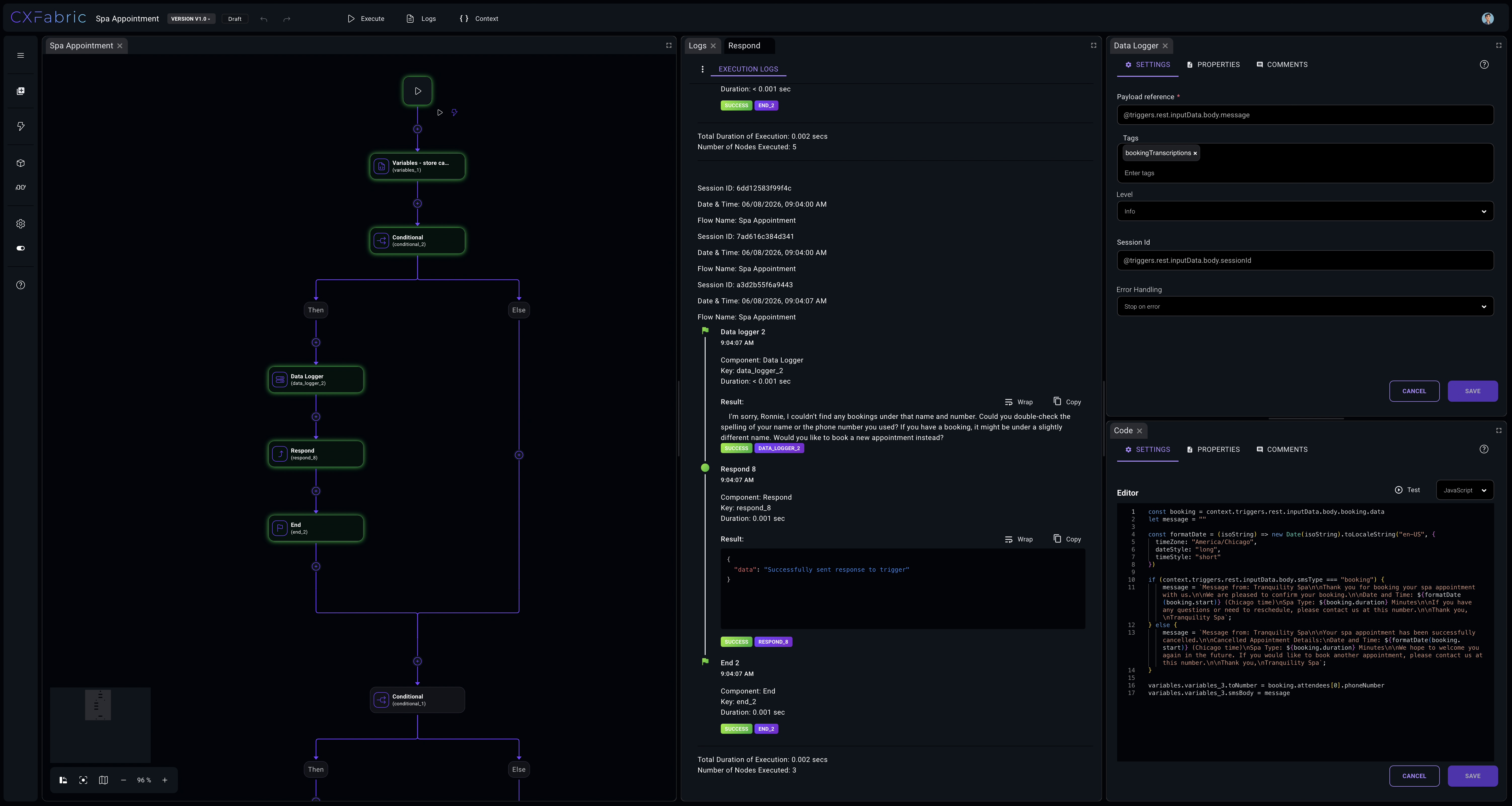
Customize the workspace with preferences for visible widgets and theme selection across the designer and portal.
Designer library
The side library keeps triggers, components, connectors, flow properties, preferences, and help close to the canvas. Builders can add the right trigger or reusable component without leaving the workflow.
Step configuration
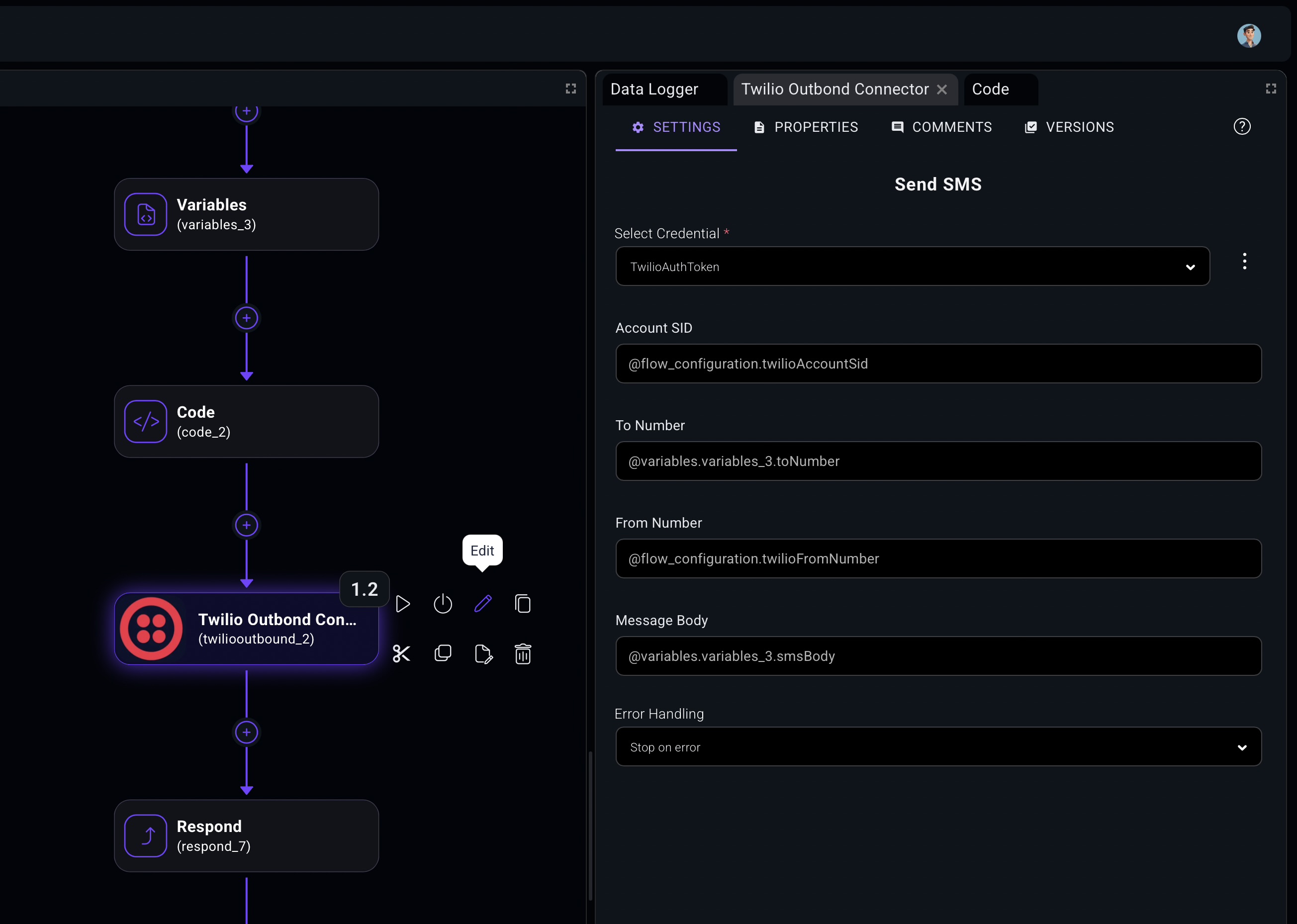
Selecting a step opens the side panel for settings, properties, comments, and versions. Builders can map input values from trigger context, select credentials, define error handling, and keep implementation notes close to the step.
Choose controlled credentials per connector action without exposing secret values in the workflow canvas.
Map fields from trigger input, prior steps, variables, and customer-specific data into each action.
Keep implementation context beside the step so reviewers understand why the workflow behaves the way it does.
Build and inspect
CXFabric gives teams two levels of execution visibility. System and historical logs provide a searchable operational record across previous runs, services, fields, sessions, and workflow identifiers.
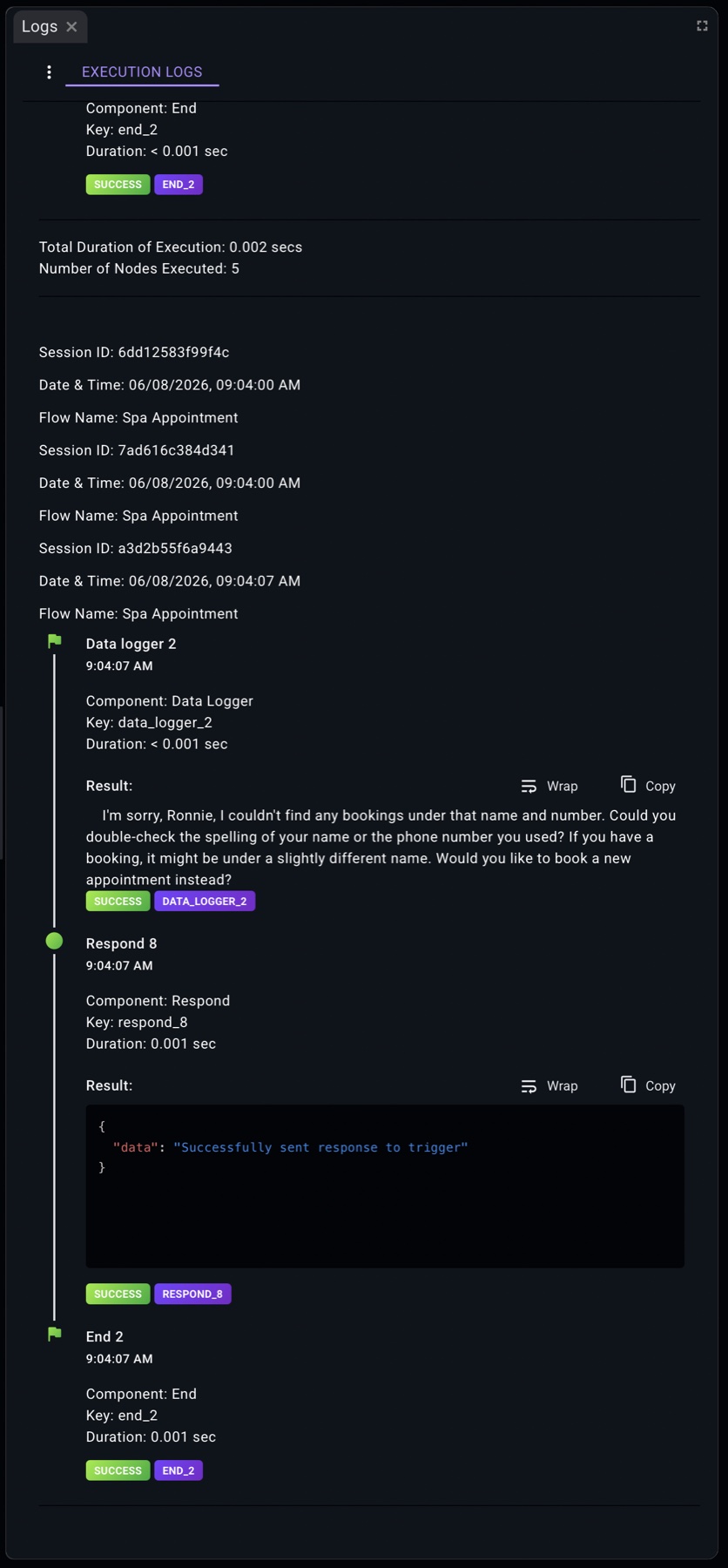
The designer also has a real-time execution log that shows step output as the workflow runs, so builders can inspect component results, response payloads, timing, and success state without leaving the canvas.
Designer preferences
Preferences let each user adjust the workspace around how they build. Canvas tools can be shown or hidden, and the designer can run in light, dark, or system mode while preserving the same flow structure.
Designer governance
CXFabric is designed for customer-owned environments, so the designer keeps operational concerns close to the workflow: credentials, versions, comments, execution history, context, and deployment readiness.
Draft state, versions, and step-level context make review easier before a workflow is promoted.
Connector credentials stay managed as platform resources instead of becoming hard-coded values.
Execution controls and logs help teams understand flow behavior while building and after deployment.
Workflow walkthrough
Start with one workflow, one customer environment, or one integration backlog. We will show how the designer turns it into a readable, executable automation path.